Google Search Console is one of the most useful free tools available to website owners. Yet many bloggers and business owners connect their websites, glance at the performance chart, and rarely explore anything else. That’s a missed opportunity.
Google Search Console (GSC) provides information about how Google discovers, crawls, indexes, and displays your website in search results. It can help you identify technical problems, discover queries that bring visitors, understand indexing issues, monitor website experience, and evaluate search visibility.
You do not need to be an SEO expert to use it effectively. You need to understand what the different reports tell you and how to turn their information into practical improvements. If you are still building your search strategy, our guide to keyword research in 2026 provides a useful companion. This guide explains 15 useful reports and reporting areas, what each one reveals, and what action to take. Report availability varies by property eligibility, available data, and Google’s current interface.
- 1. Performance Report: Understand Organic Search Traffic
- 2. Links Report: Understand Your Website’s Link Structure
- 3. Discover Performance Report: Measure Google Discover Visibility
- 4. Google News Performance Report: Monitor News Visibility
- 5. URL Inspection Tool: Check Individual Web Pages
- 6. Page Indexing Report: Understand Which Pages Google Indexes
- 7. Video Page Indexing Report: Check Video Search Eligibility
- 8. Sitemaps Report: Help Google Discover Important URLs
- 9. Crawl Stats Report: Understand Google’s Crawling Activity
- 10. HTTPS Report: Check Website Security
- 11. Core Web Vitals Report: Measure Real-World Website Experience
- 12. Breadcrumbs Enhancement Report: Monitor Structured Data
- 13. Review Snippets Report: Check Review and Rating Markup
- 14. Security Issues Report: Protect Your Website and Visitors
- 15. Manual Actions Report: Check for Google Search Policy Violations
- How to Use Search Console Reports Together
- Common Search Console Mistakes to Avoid
- How Often Should You Check Google Search Console?
- Key Takeaways
- Final Thoughts
1. Performance Report: Understand Organic Search Traffic
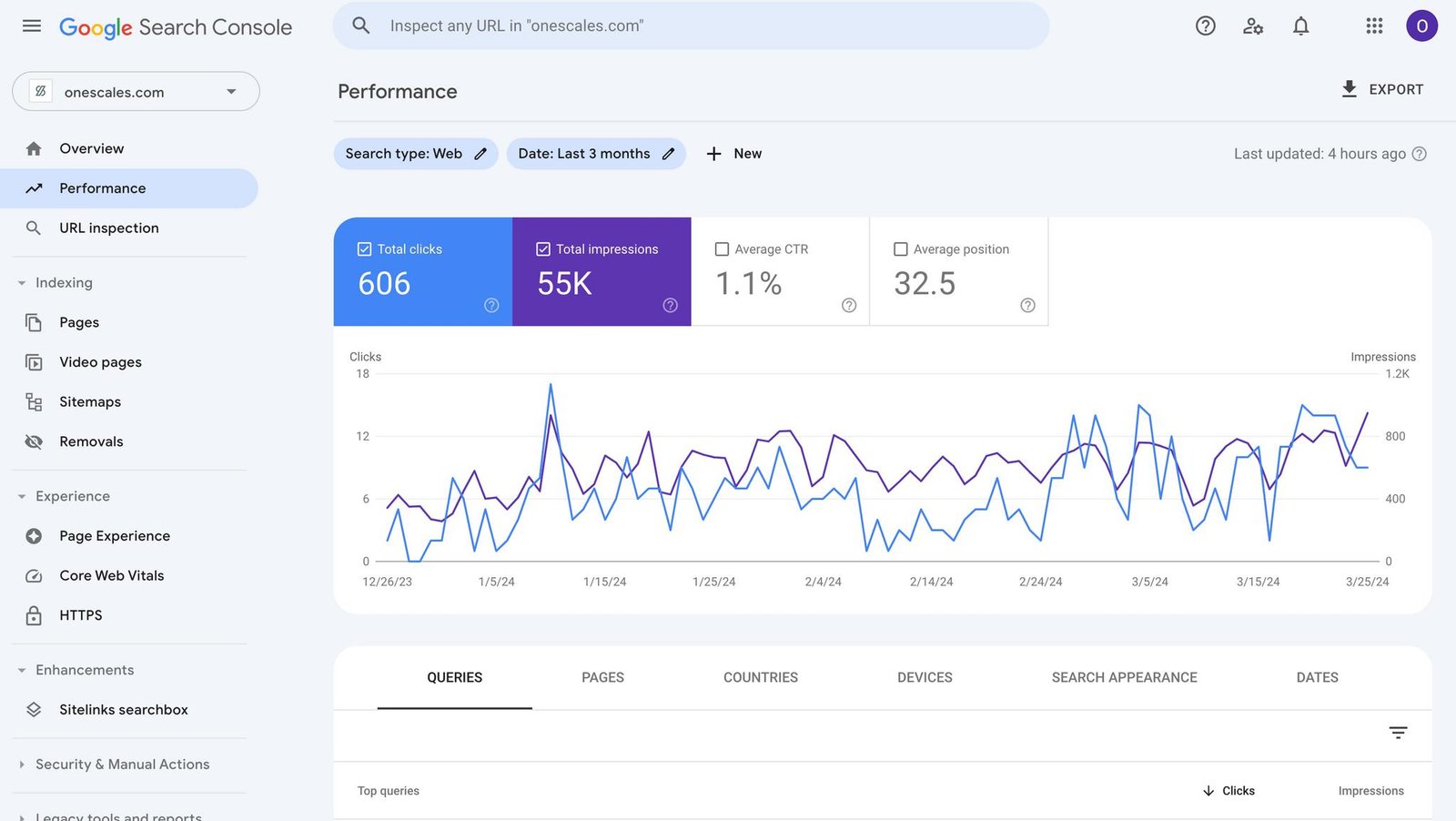
The performance report is one of the first places to review. It shows how your website performs in Google Search through clicks, impressions, click-through rate (CTR), and average position.
- Total clicks: clicks from Google Search to your website.
- Total impressions: how often your website appeared in search results.
- Average CTR: the percentage of impressions that generated clicks.
- Average position: an aggregate position metric for your highest result in the reporting context.
Select a date range and compare it with an earlier period. Explore queries to discover the searches generating impressions, then open Pages to identify your strongest and weakest URLs. For example, a page may receive many impressions for “best blogging tools” but relatively few clicks. Review its title, description, search intent, and competing results before changing it.
Action: Find relevant pages with substantial impressions and comparatively low CTR. Improve the result’s relevance and appeal without making misleading promises.
2. Links Report: Understand Your Website’s Link Structure
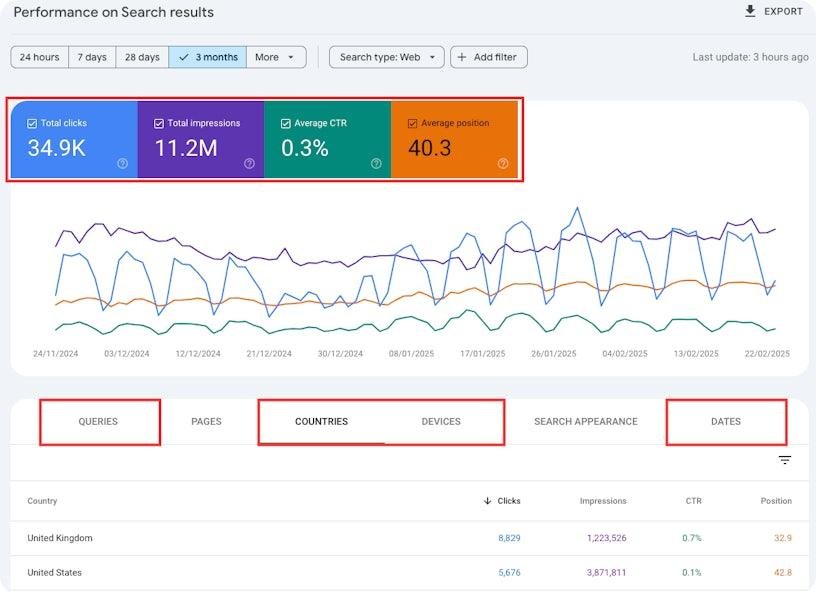
The Links report shows information about links pointing to your website and links between pages on your own site. It includes external linking sites, commonly used link text, your most linked pages, and internal link targets.
Use it to identify important pages that receive few internal links and may be difficult for visitors and crawlers to discover. Review external linking patterns for context, but do not assume that every unfamiliar backlink is harmful or that the report is a complete list of every link Google knows about.
Action: Strengthen contextual internal links to important guides and cornerstone pages. Use descriptive anchor text that explains what a reader will find after clicking.
3. Discover Performance Report: Measure Google Discover Visibility
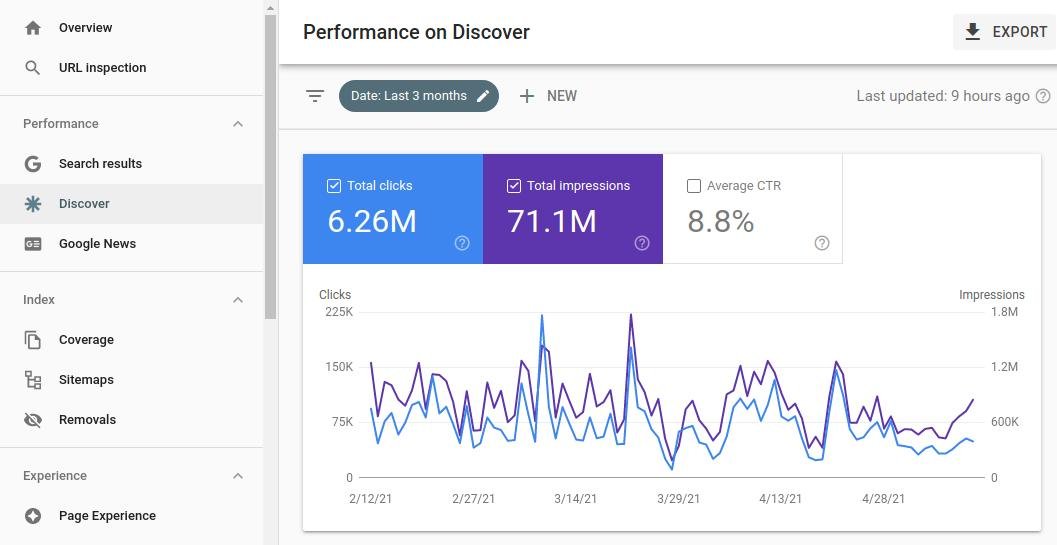
Google Discover recommends content to users based on their interests and activity. Users do not necessarily enter a search query to encounter an article in Discover. Eligible properties can see Discover clicks, impressions, CTR, dates, and content performance in this report.
Discover can introduce articles to people who have not searched for their exact topic. Traffic can fluctuate, however, and should not be treated as guaranteed or predictable. If the report is available, identify articles that attract attention and consider their subject matter, freshness, presentation, and usefulness when planning future content.
Action: Use Discover data as an additional audience insight, not as a replacement for a sustainable search strategy.
4. Google News Performance Report: Monitor News Visibility
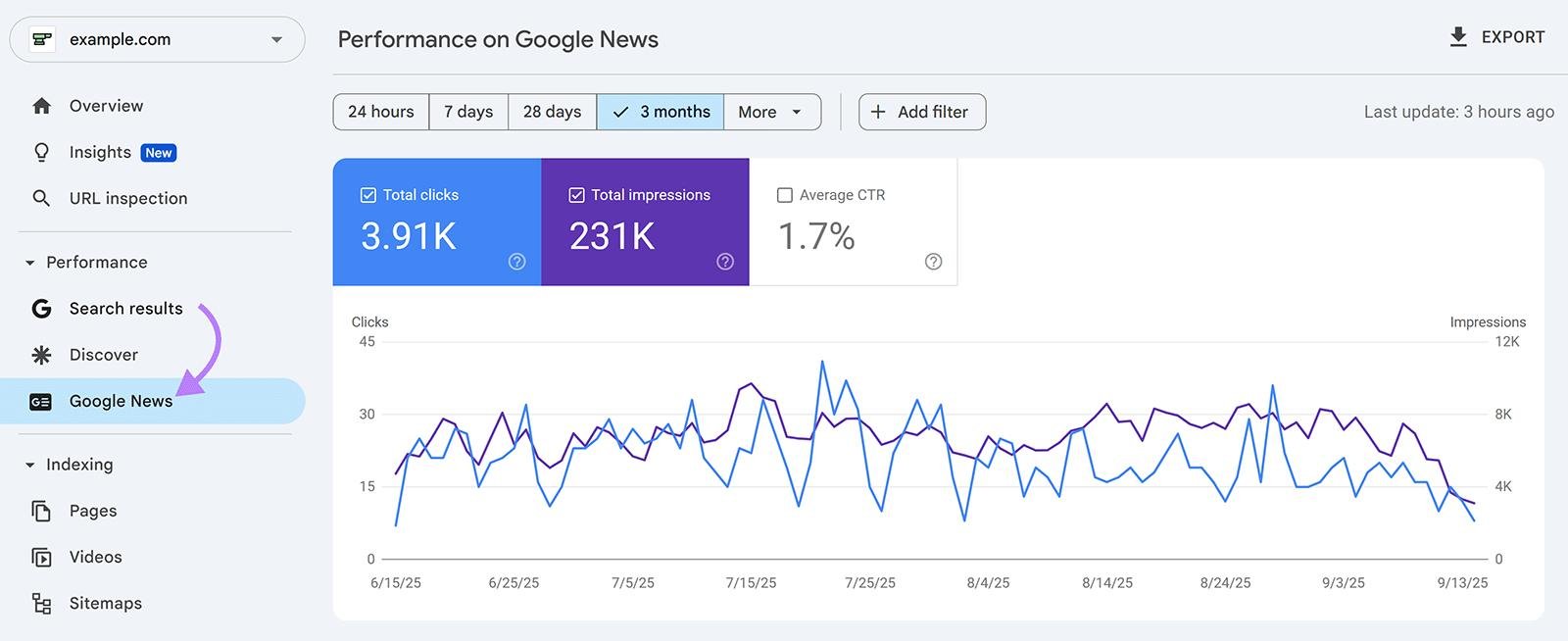
Websites with eligible news content and sufficient data may see a Google News performance report. It can show clicks, impressions, CTR, countries, devices, and individual article performance from Google News.
This report is distinct from general web search performance. It matters most for publishers and websites producing timely reporting. A general blog may not have Google News data, and that is normal.
Action: If the report is available, examine which articles attract readers and use the findings to inform editorial planning. Do not assume that every blog post is eligible for Google News exposure.
5. URL Inspection Tool: Check Individual Web Pages
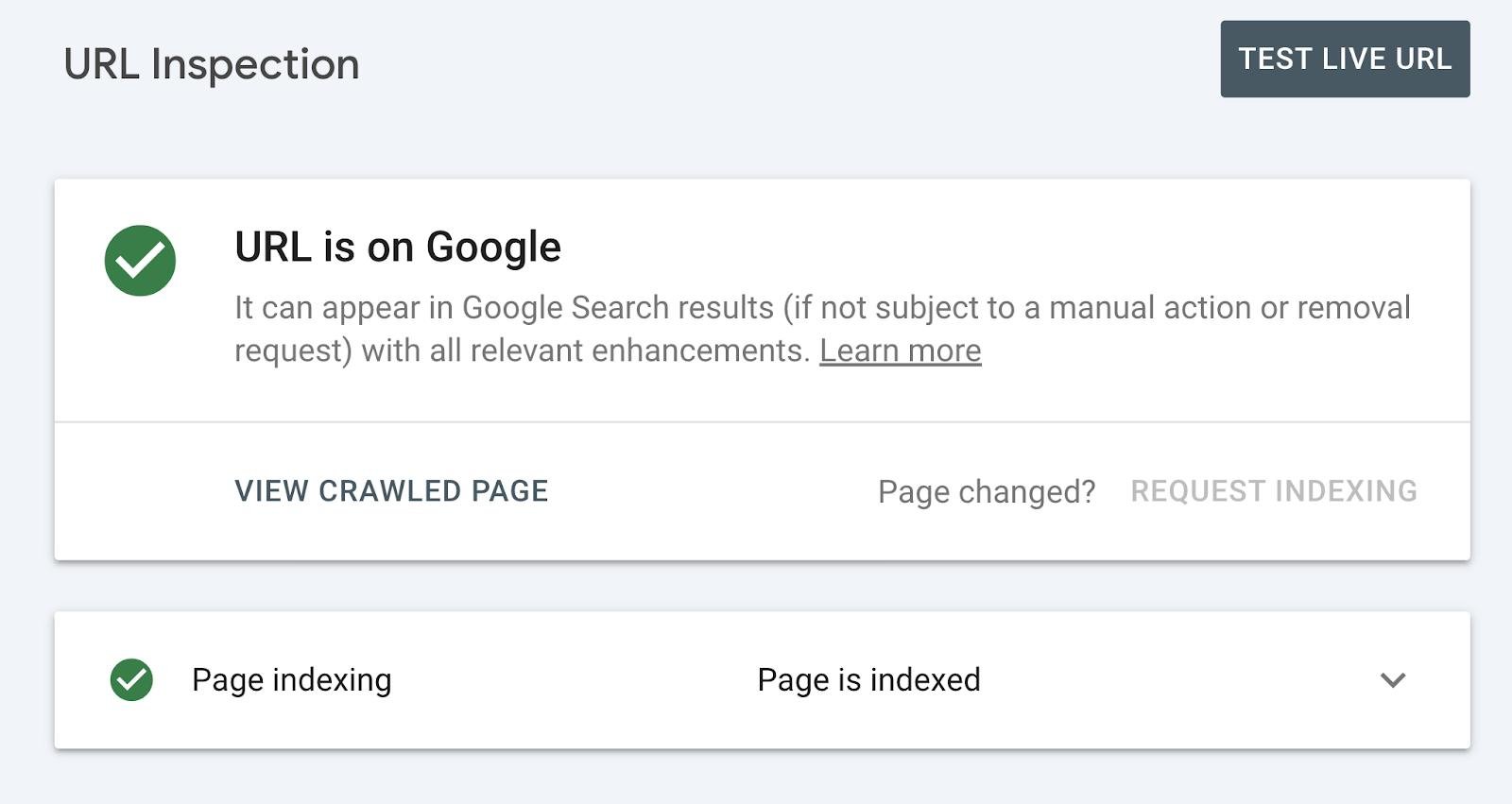
The URL Inspection tool lets you examine Google’s indexed information about an individual URL and test the current live page. It can show whether Google knows about the URL, indexing status, crawl information, declared and Google-selected canonical URLs, and available enhancement information.
- Open the correct Search Console property.
- Enter the complete page URL in the inspection field.
- Review the indexed version and its status.
- Use the Test Live URL to examine the current accessible page.
- Fix problems before requesting indexing when appropriate.
For example, if a new article is not appearing in Search, inspection may reveal that Google has not crawled it, indexing is blocked, or another URL has been selected as canonical. “URL is on Google” means the URL is eligible; it does not guarantee that it will appear for every search.
Action: Inspect important new pages, updated articles, and URLs with unexpected indexing problems. Requesting indexing is not a guarantee of immediate crawling, indexing, or ranking.
6. Page Indexing Report: Understand Which Pages Google Indexes
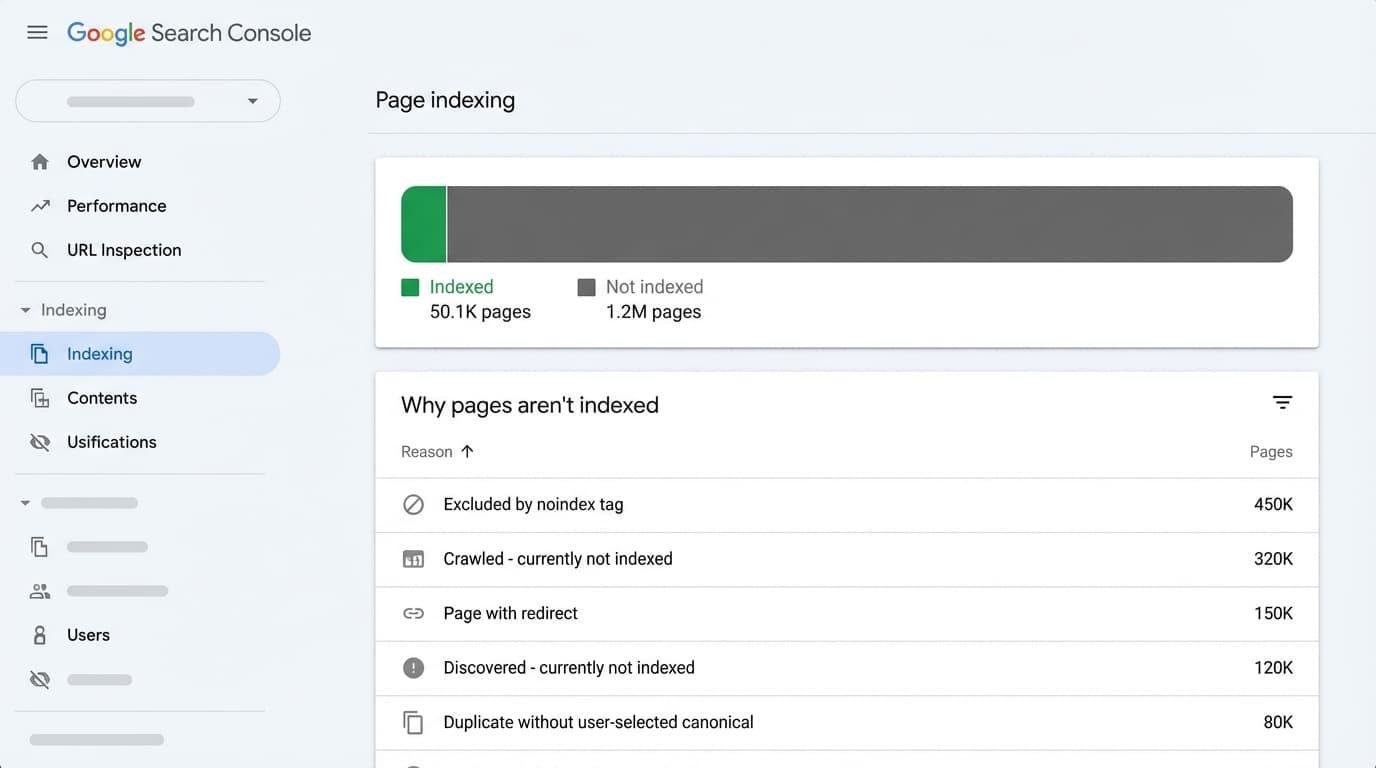
The Page Indexing report groups URLs according to their indexing status and explains why some pages are not indexed. Examples of statuses include crawled but currently not indexed, discovered but currently not indexed, excluded by a noindex directive, blocked by robots.txt, a page with a redirect, an alternate page with a canonical, a not found (404), and a server error (5xx).
Not every excluded URL represents an SEO problem. A redirected URL or a duplicate that correctly points to a preferred canonical version generally should not be treated as an error. Focus on valuable pages that should be indexed but are not.
If indexed pages suddenly decline, investigate accidental noindex settings, migration changes, broken redirects, server problems, canonical tags, and content removals. Check sample URLs and inspect representative pages before making sitewide changes.
Action: Review the reason for non-indexing, determine whether it is intentional, and correct genuine problems. Do not try to force every URL into Google’s index.
7. Video Page Indexing Report: Check Video Search Eligibility
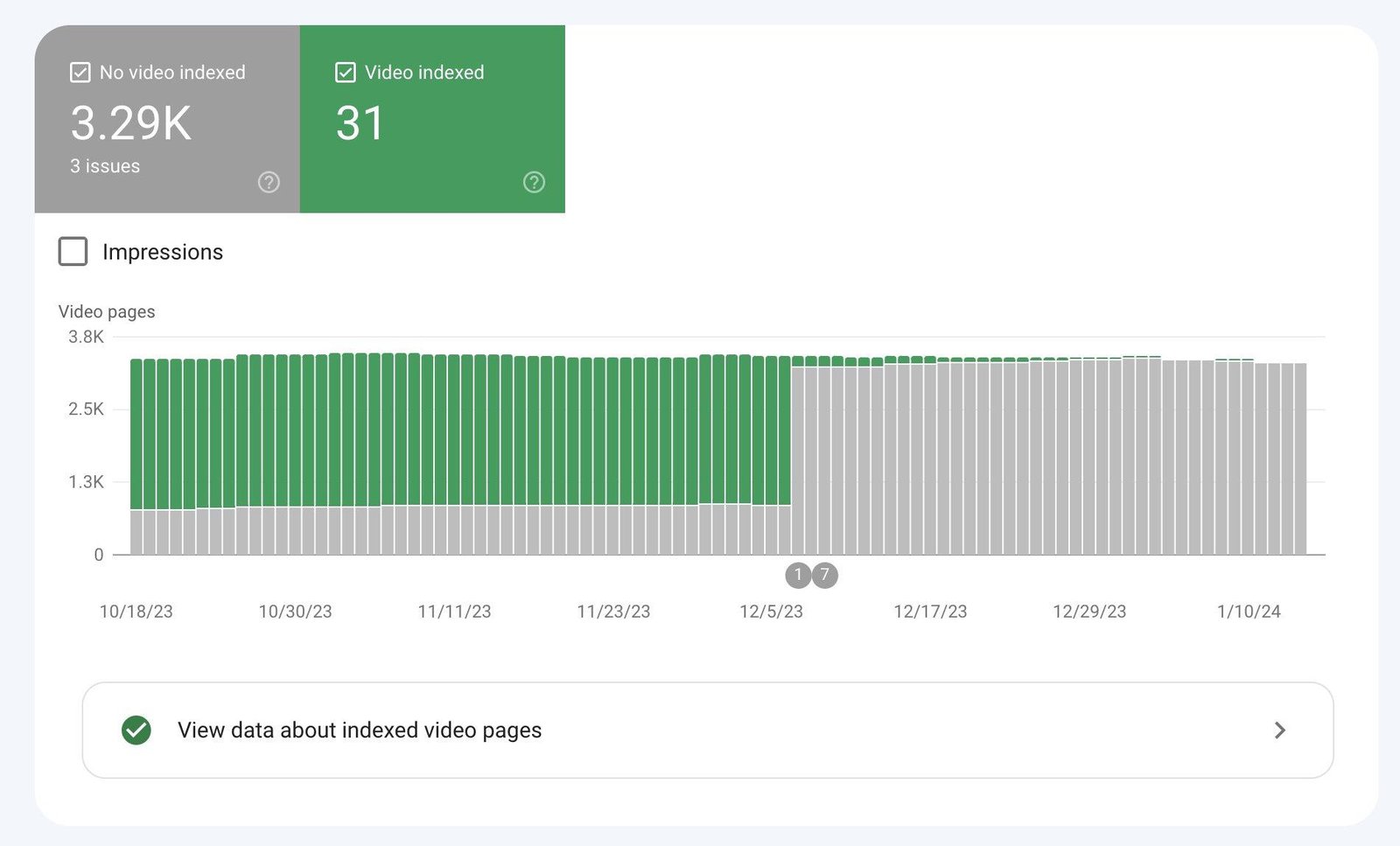
Websites that publish video content can use the Video Page Indexing report to understand how Google identifies videos on pages and whether they are eligible for video-related search experiences. The report can show indexed video pages and reasons that other videos were not indexed.
If you publish tutorials with embedded videos, check whether Google can access the page and recognize the video. Make sure the video is available, properly embedded, and supported by useful page information. A video report may not be useful for a website that does not publish video content.
Action: Review the report when video is an important part of your content strategy. Prioritize key watch pages and investigate the specific reasons shown for videos that are not indexed.
8. Sitemaps Report: Help Google Discover Important URLs
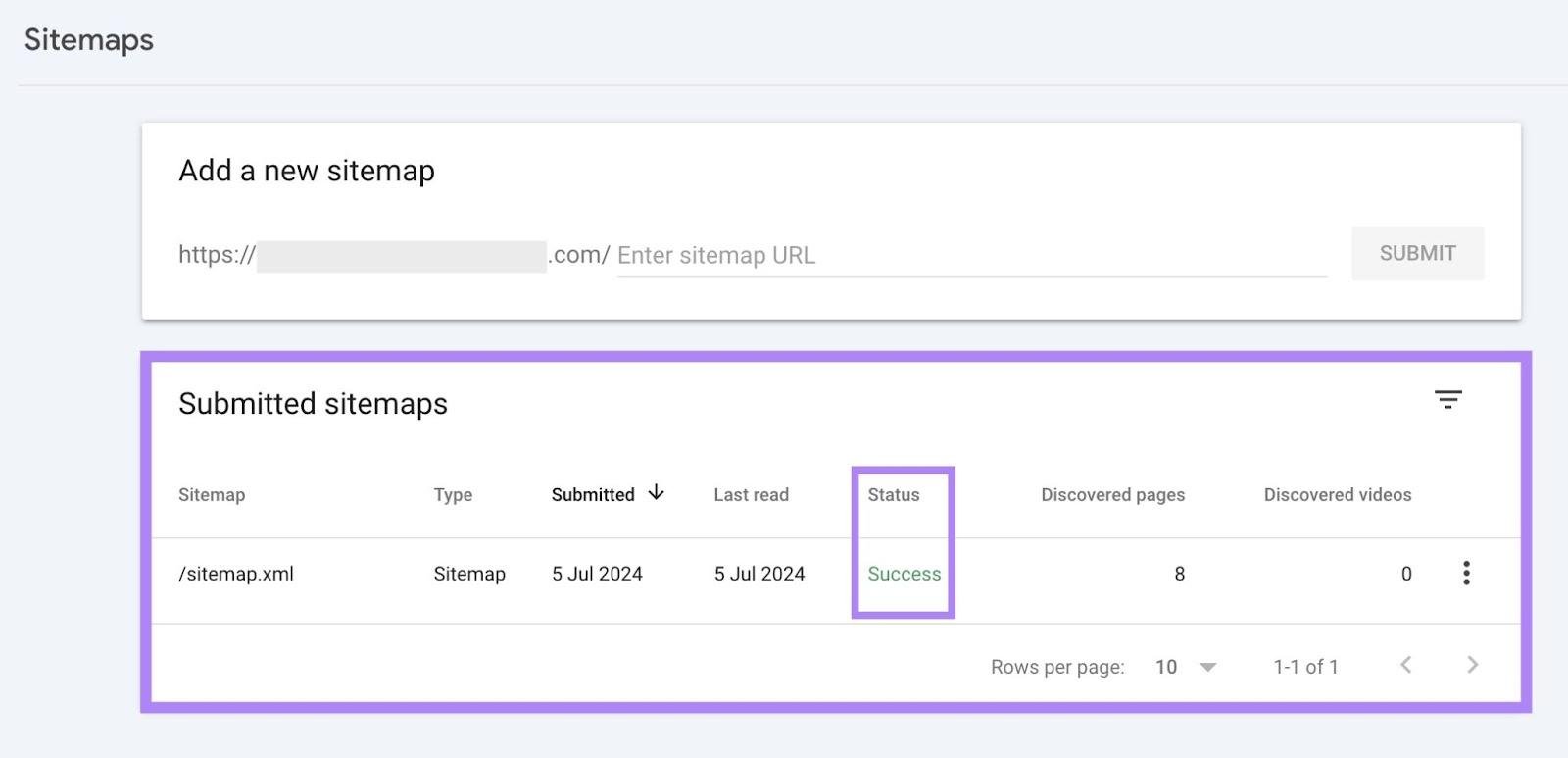
An XML sitemap lists important URLs that you want search engines to discover. The Sitemaps report lets you submit sitemap URLs and review processing information, including the last read date, status, and discovered URLs.
For WordPress, an SEO plugin such as Rank Math can generate an XML sitemap. A common sitemap index address is https://example.com/sitemap_index.xml, although your actual location may differ.
- Open Search Console and select your property.
- Choose Sitemaps.
- Enter the sitemap URL.
- Submit it and review the processing status.
A sitemap helps Google discover URLs but does not guarantee indexing. Include canonical, indexable URLs that you actually want Google to discover. Check sitemap processing after migrations, URL changes, and major content updates.
Action: Keep your sitemap accurate and investigate processing errors rather than repeatedly resubmitting an unchanged file.
9. Crawl Stats Report: Understand Google’s Crawling Activity
The Crawl Stats report provides technical information about Googlebot’s crawling activity. Depending on the property, it can show total crawl requests, download size, average response time, host status, response codes, file types, and Googlebot purposes. The report is available for domain-level properties, not URL-prefix properties.
If your server response time increases or Googlebot encounters more server errors, the report can help you investigate. More crawl requests do not automatically mean better rankings. Google adjusts crawling based on factors such as demand and crawl capacity.
Action: Monitor server errors, response-time changes, and host availability. If problems persist, investigate hosting performance and server configuration.
10. HTTPS Report: Check Website Security
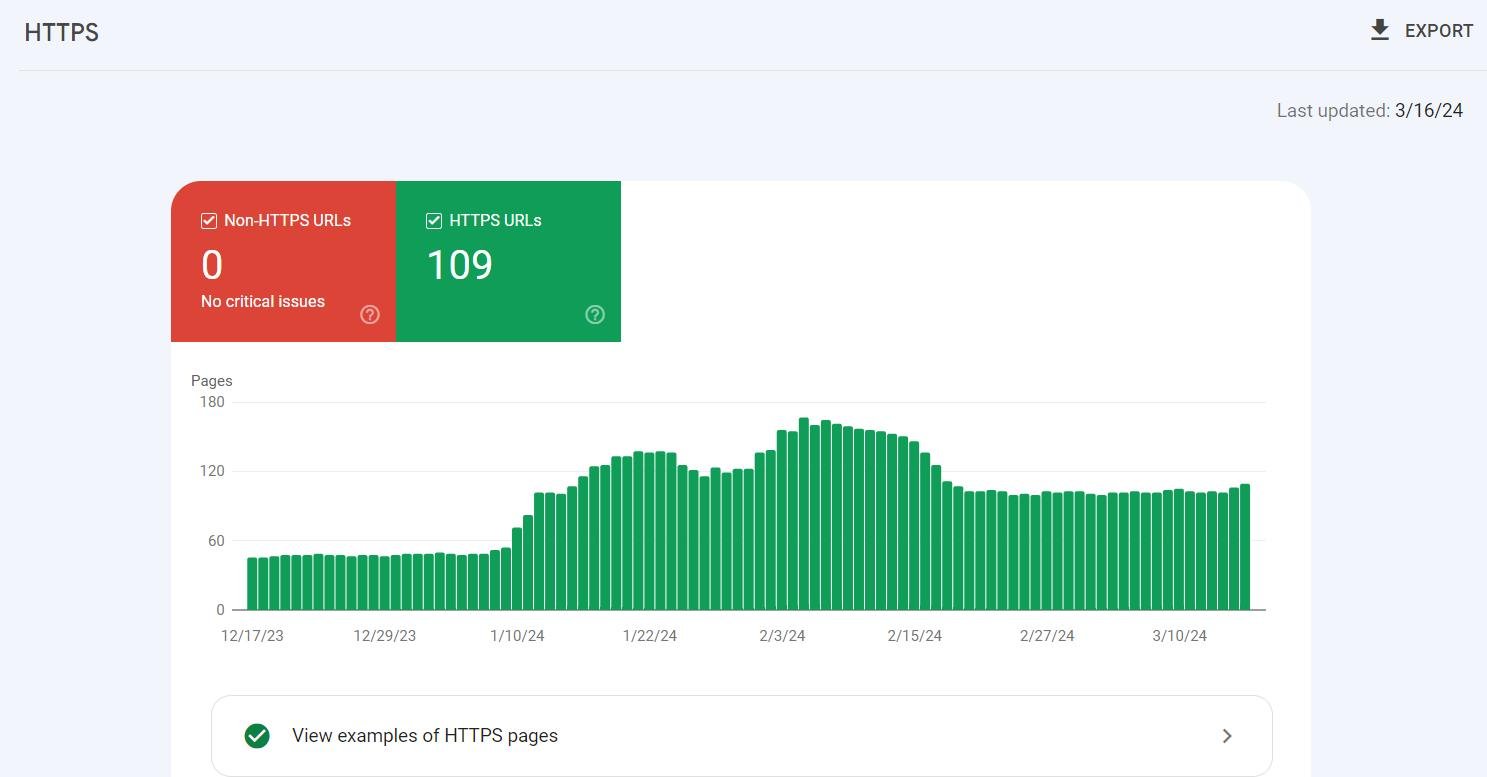
HTTPS protects information transferred between a visitor’s browser and your website. The HTTPS report helps eligible site owners understand the HTTPS status of URLs and identify certain security-related problems affecting page eligibility.
Check that important URLs use HTTPS consistently. Look for HTTP versions that do not redirect correctly, mixed-content problems, certificate issues, and insecure resource references. A page can load over HTTPS while some images or scripts still load over HTTP.
Action: Review redirects, canonical URLs, and internal links after installing or renewing an SSL certificate. Fix mixed content and make sure the site uses secure resources.
11. Core Web Vitals Report: Measure Real-World Website Experience
The Core Web Vitals report evaluates loading performance, responsiveness, and visual stability using real-world usage data from the Chrome User Experience Report (CrUX). It focuses on three metrics:
- Largest Contentful Paint (LCP): measures when the largest visible content element loads. A good result is 2.5 seconds or less.
- Interaction to Next Paint (INP): measures responsiveness to user interactions. A good result is 200 milliseconds or less.
- Cumulative Layout Shift (CLS): measures unexpected layout movement. A good result is 0.1 or less.
URL groups are classified as Good, Needs improvement, or Poor, and mobile and desktop are evaluated separately. The report requires sufficient real-user data, so not every URL appears.
For WordPress sites, practical improvements may include compressing images, using WebP or AVIF, implementing caching, reducing unnecessary JavaScript, optimizing fonts and third-party scripts, and reserving dimensions for images and ads to prevent layout shifts.
Action: Review mobile and desktop separately. Prioritize issues affecting groups of important pages and use PageSpeed Insights or Lighthouse for additional diagnosis.
12. Breadcrumbs Enhancement Report: Monitor Structured Data
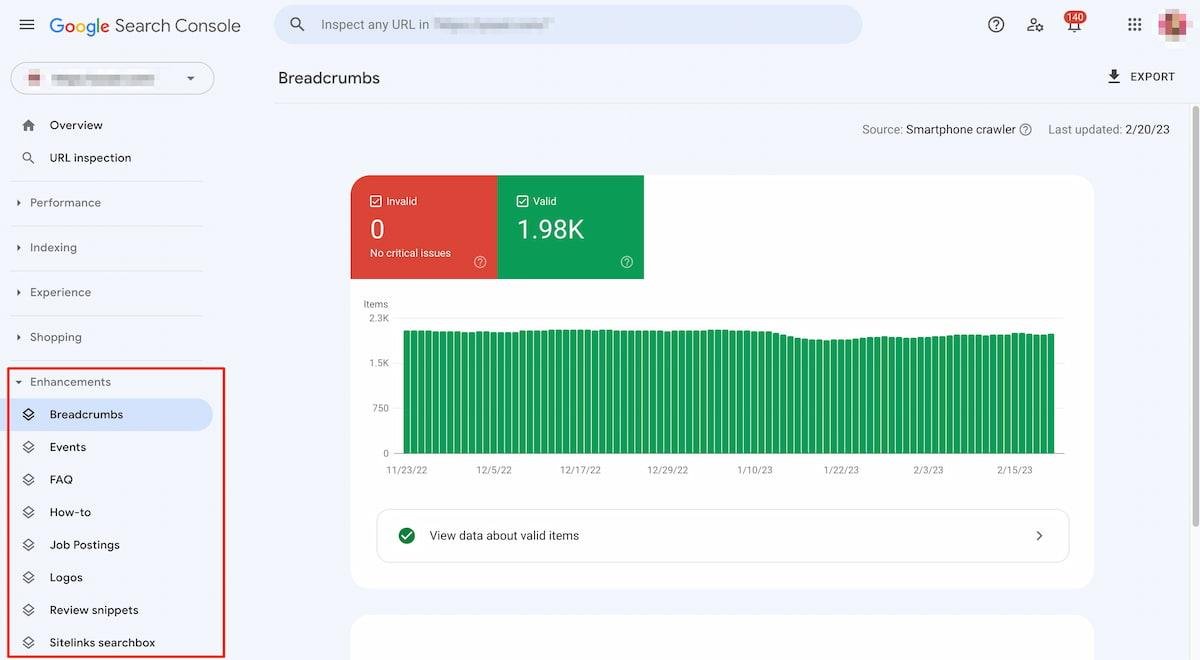
Breadcrumbs help visitors understand where a page sits within a website, for example, Home → SEO → Search Console Guide. Google can also use breadcrumb structured data to understand page hierarchy and may display breadcrumb information in search results.
When Google detects supported breadcrumb markup, Search Console can provide a Breadcrumbs enhancement report with valid and invalid items, errors, warnings, and affected URLs. If you use Rank Math to generate breadcrumb structured data, the report can help identify markup problems.
Valid structured data does not guarantee a rich result. Fix errors in the markup and test affected pages with Google’s Rich Results Test.
Action: Check the report if it is available for your property. Correct structured data errors without adding markup that does not match visible page content.
13. Review Snippets Report: Check Review and Rating Markup
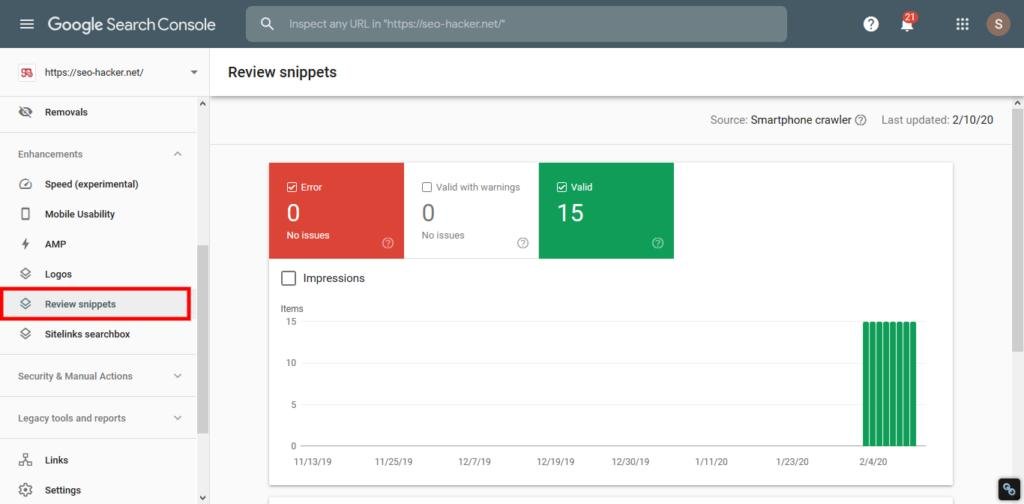
If your website publishes genuine eligible reviews, the Review Snippets report can help monitor Review and AggregateRating structured data. Google may use valid markup to show additional review or rating information in search results, but display is not guaranteed.
The report can show valid and invalid review items, critical errors, warnings, and affected pages. For example, a genuine product review may include a rating based on an actual evaluation. The structured data must accurately represent review information visible to users.
Never invent ratings or add review markup to pages that do not contain genuine review content. Google has specific eligibility rules, including restrictions on self-serving reviews for certain business types.
Action: If your site publishes eligible reviews, validate the markup and correct errors. If you do not publish reviews, do not add them just to obtain a report.
14. Security Issues Report: Protect Your Website and Visitors
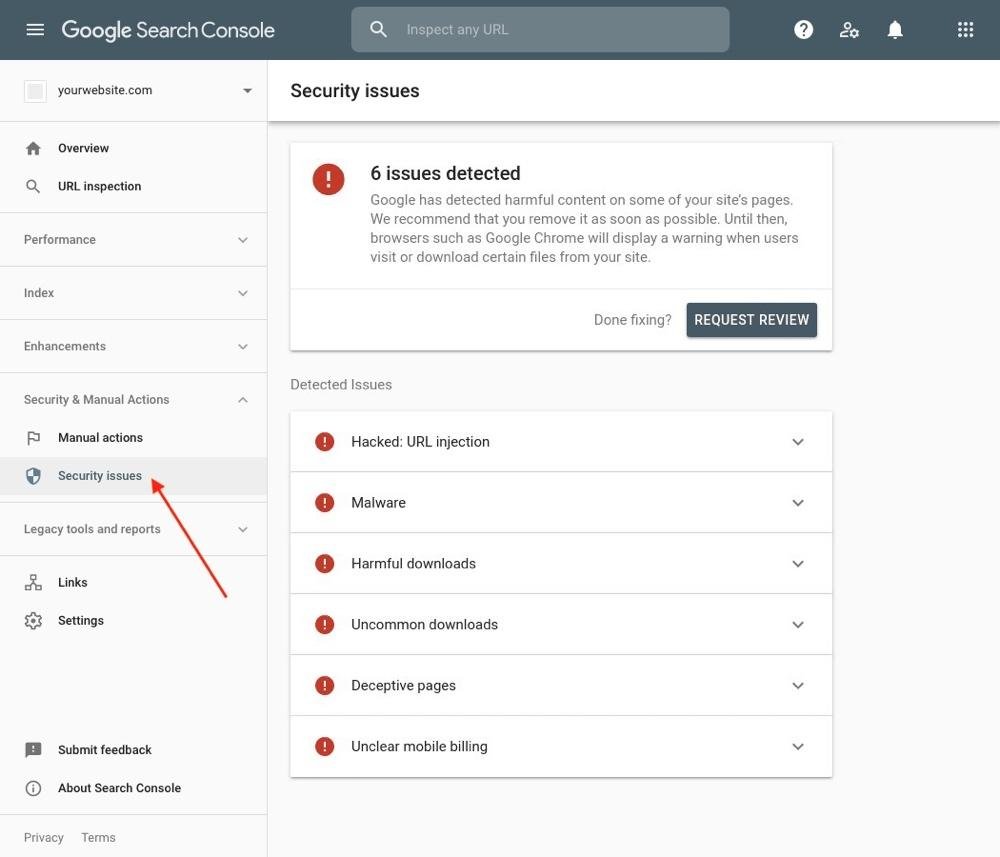
The Security Issues report identifies problems Google detects that could harm visitors or their devices. Examples include hacked content, malware, unwanted software, phishing, and other forms of social engineering.
If a hacker injects malicious code into WordPress pages, visitors may encounter dangerous content, and Google may show warnings in Search or browsers. Treat a reported issue as urgent.
- Open the Security Issues report and read the description.
- Examine sample affected URLs; the examples may not be a complete list.
- Investigate and fix the problem throughout the site.
- Update WordPress, plugins, and themes, and review accounts and passwords.
- Scan for remaining vulnerabilities and test the fixes.
- Request a review after all listed issues have been corrected.
Action: Monitor security notifications and investigate them immediately. A review request should explain the issue, the work completed, and the outcome.
15. Manual Actions Report: Check for Google Search Policy Violations
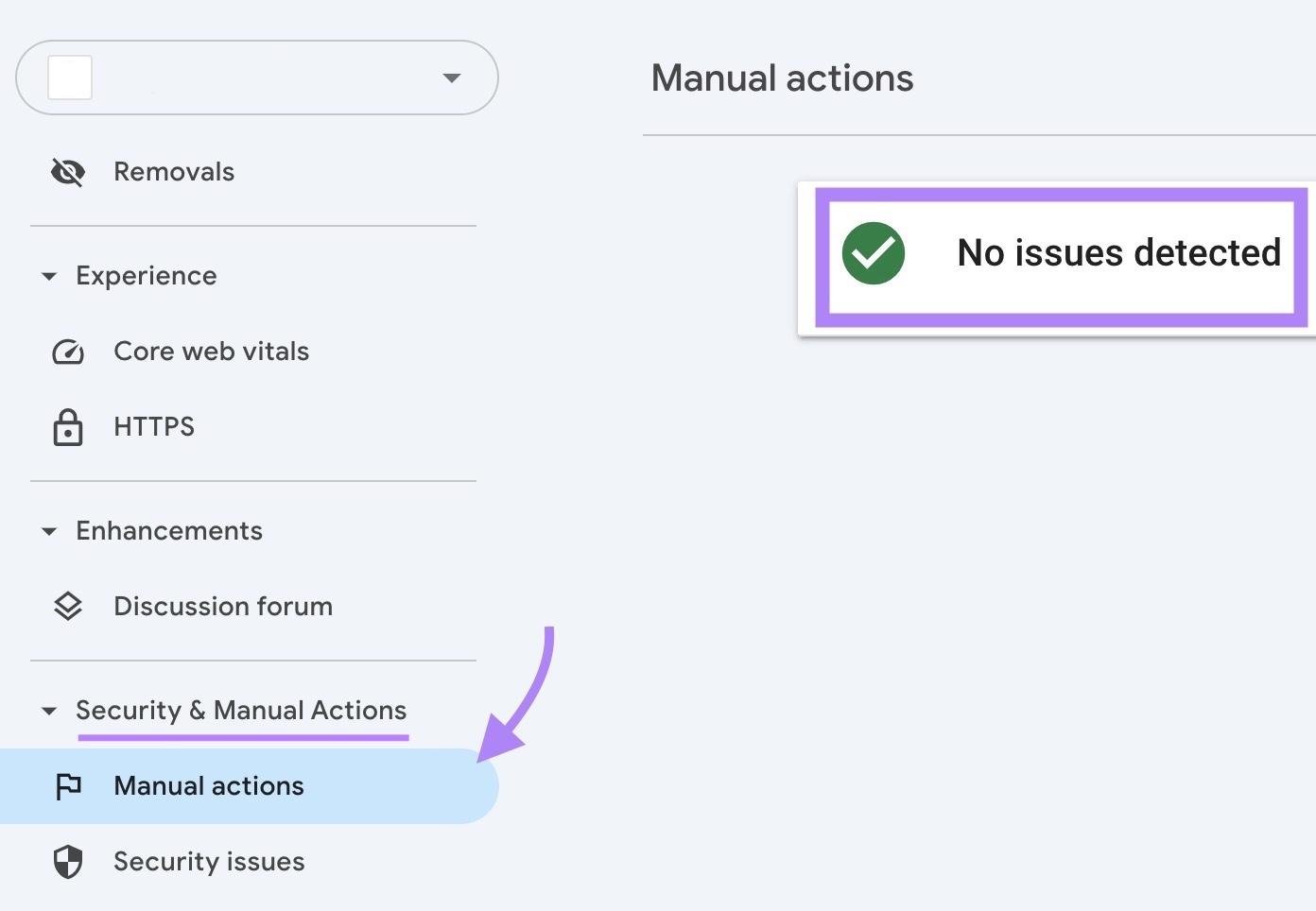
The Manual Actions report shows whether Google’s reviewers have identified violations of its spam policies affecting your website. This is different from an ordinary algorithmic ranking decline: a manual action is a specific enforcement action.
Potential problems can include unnatural links, automatically generated spam, cloaking, hidden text, keyword stuffing, structured data abuse, site reputation abuse, and other spam policy violations. Depending on the issue, some pages or the entire site may experience reduced visibility or removal from Search.
If a manual action appears, read the explanation, identify affected pages and practices, review the relevant spam policies, correct the underlying violations, and document your work. Submit a reconsideration request only after the site genuinely complies. Google will review the request; revocation is not guaranteed.
Action: Check this report when investigating a significant unexplained visibility problem. Also review property dashboard notifications.
How to Use Search Console Reports Together
When a question requires more investigation, export the relevant report data and compare it with your own publishing or change history. Keep a simple record of the date, affected URLs, issue, action taken, and result. This makes it easier to distinguish a temporary fluctuation from a recurring technical problem. Avoid concluding from a single day of data; use a suitable date range and check whether the pattern is consistent.
When website traffic suddenly decreases
Start with Performance. Compare clicks and impressions with an earlier period, identify affected pages and queries, and then check Page Indexing, URL Inspection, Manual Actions, and Security Issues. Investigate recent website changes and demand shifts before deciding on a cause.
When a new article is not indexed
Use URL Inspection to check discovery, crawling, and indexing permissions, and canonical selection. Verify the page is included in your sitemap where appropriate and has useful internal links. Correct technical problems before requesting indexing. For more help, read our guide to fixing Crawled – Currently Not Indexed issues.
When impressions are high, but clicks are low
Review queries, pages, search intent, titles, descriptions, and positions. Our related guide, High Impressions, Low Clicks in Google Search Console, explains how to investigate this situation.
When a WordPress website feels slow
Start with Core Web Vitals and identify whether issues affect mobile, desktop, or both. Investigate images, caching, scripts, fonts, hosting, and layout stability. See how to optimize WordPress images for better SEO and faster loading.
Common Search Console Mistakes to Avoid
- Assuming every excluded page is an error: redirected, duplicate, and intentionally excluded URLs may be normal.
- Requesting indexing repeatedly: fix the underlying problem first; requests do not guarantee indexing.
- Ignoring query data: use relevant queries to improve content and discover distinct topic opportunities.
- Treating average position as an exact ranking: it is an aggregate metric that varies by query and context.
- Ignoring mobile performance: test important pages on mobile and review mobile Core Web Vitals.
- Expecting every report to appear: some require eligible content, detected markup, or sufficient data.
- Collecting data without taking action: prioritize meaningful problems and measure the outcome of fixes.
How Often Should You Check Google Search Console?
| Frequency | What to review |
|---|---|
| Daily or several times weekly | Major traffic changes and urgent security notifications |
| Weekly | Search performance, important queries, new content indexing |
| Monthly | Page Indexing, Core Web Vitals, crawl trends, sitemap status |
| After major changes | URL Inspection, sitemap processing, HTTPS, indexing, structured data |
| After a fix | Relevant validation and monitoring reports |
A small blog may need a brief weekly review and a more detailed monthly audit. A large publishing website may require more frequent monitoring. Match the schedule to your site’s size, publishing frequency, and technical complexity.
Key Takeaways
- Performance data explains organic search visibility, clicks, impressions, CTR, and position.
- Discover and News show how people find content across other Google experiences.
- URL Inspection diagnoses individual page issues.
- Page Indexing and Sitemaps help explain discovery and indexing.
- Crawl Stats and HTTPS provide technical information.
- Core Web Vitals helps monitor real-world user experience.
- Enhancement reports help identify structured-data problems.
- Security Issues and Manual Actions deserve immediate attention when problems appear.
- Consistent monitoring helps you make better SEO decisions.
Final Thoughts
Google Search Console is much more than a website traffic dashboard. It is a valuable resource for understanding how Google interacts with your website and where improvements may be needed.
Start with Performance, Page Indexing, and Core Web Vitals. Then explore the remaining reports according to your website’s needs. Learn one report at a time, investigate the information it provides, and take practical action.
Your next step: Open Google Search Console, review your Performance and Page Indexing reports, and identify one improvement you can make this week. Before your next content update, revisit our monthly SEO tasks guide and build Search Console checks into your routine. Share this guide with another website owner who wants to understand SEO better.