

A service business needs more than a good-looking website. Visitors must be able to understand what you offer, choose the right service, check availability, request or book an appointment, and know what happens next. A suitable WordPress service booking plugin can turn a basic website into a practical booking channel by handling calendars, appointment forms, staff schedules, confirmations, and—in some cases—online payments.
The best plugin depends on the way you deliver your service. A solo consultant who schedules discovery calls has different needs from a salon with several employees, a repair company that books time slots, or a training provider that sells group sessions. This guide compares established WordPress options, explains which features matter, and gives you a checklist for choosing and setting up a booking system.
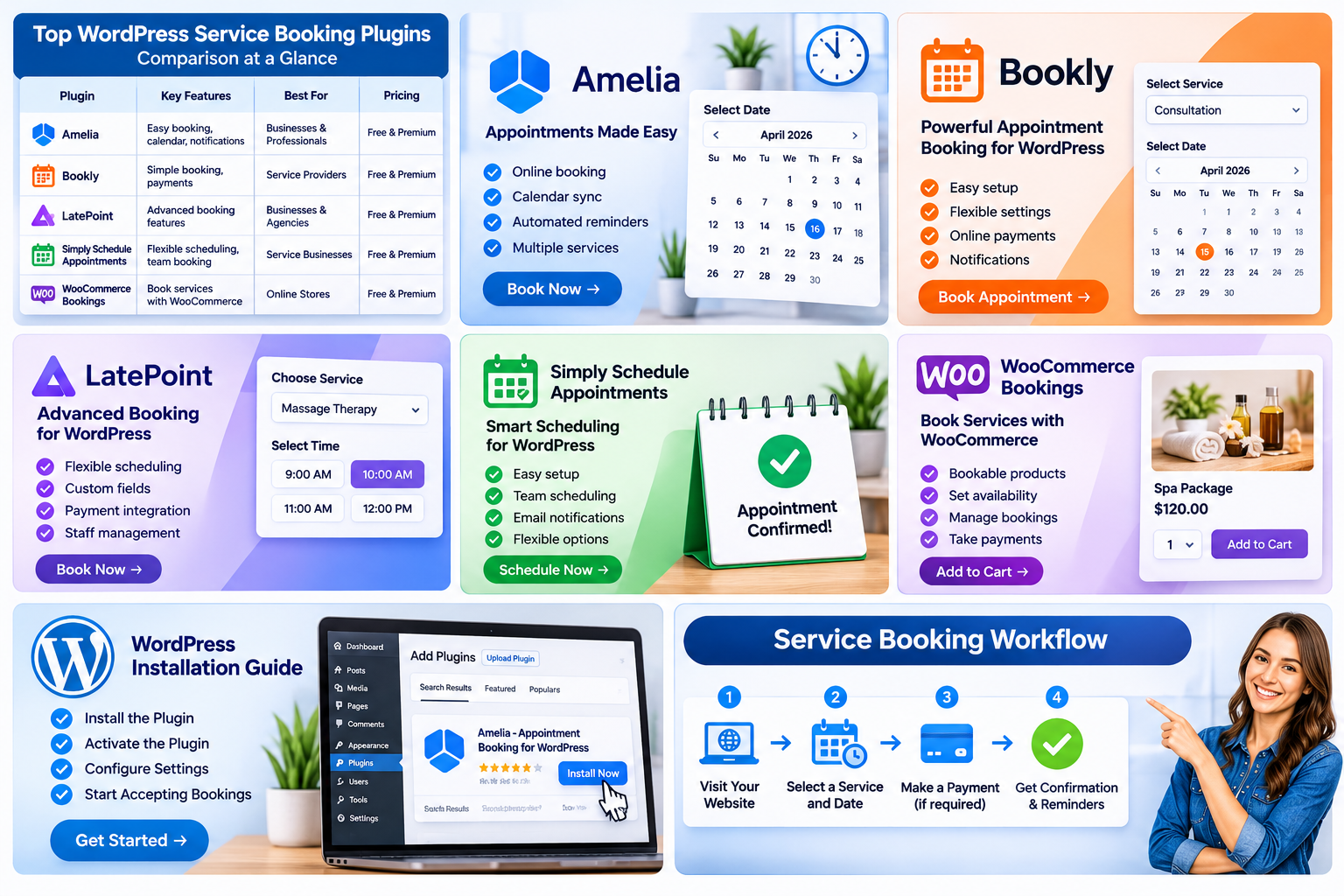
- What Is a WordPress Service Booking Plugin?
- Best WordPress Plugins for Service Businesses
- Quick Comparison: Which Plugin Should You Choose?
- Essential Features to Look for in a Service Booking Plugin
- How to Choose the Right Plugin for Your Type of Service Business
- How to Install and Configure a WordPress Booking Plugin
- Common Mistakes to Avoid
- Does a Booking Plugin Help SEO?
- Frequently Asked Questions
- Final Recommendation
- Sources and Further Reading
What Is a WordPress Service Booking Plugin?
A WordPress service booking plugin adds appointment or reservation functionality to a WordPress website. It usually lets an administrator define services, working hours, available time slots, staff or resources, and customer notifications. Visitors can then select a service and request or confirm a suitable time without exchanging multiple emails.
Depending on the product, the plugin may also support deposits, full payments, recurring appointments, group bookings, calendar synchronization, coupons, customer accounts, or integrations with video-meeting and marketing tools. These capabilities are not universal: some are included in free editions, while others require a paid plan or add-on.
Do not confuse an appointment scheduler with a service catalogue. A catalogue displays what you do—such as web design, plumbing, coaching, or cleaning—but may not manage availability. A booking plugin handles the scheduling process. Some businesses need both: service pages that explain each offer and a booking flow that turns interest into an appointment.
Best WordPress Plugins for Service Businesses
The products below serve overlapping but different use cases. Treat this as a shortlist, not a universal ranking. Feature availability and pricing can change, so check the current product page and test the exact workflow before buying.
1. Amelia – A feature-rich option for appointments and events
Best for: service businesses that need structured appointment booking, employee schedules, locations, and potentially event bookings.

Amelia is worth evaluating if your business has several services or team members and you want more than a simple meeting calendar. A salon could create separate treatments and assign staff; a training business could manage events; a consultancy could offer different appointment lengths. Its breadth is also a reason to plan the setup carefully: define services, staff, locations, buffers, and cancellation rules before publishing the booking form.
Watch out: some advanced functions are tier-dependent. Review the official Amelia feature availability documentation to confirm that the edition you are considering includes the functions you need.
2. Bookly—Modular appointment scheduling
Best for: businesses that want a booking calendar with the option to extend it through add-ons.
Bookly provides online booking and appointment management, including a booking form, services, staff, working hours, and customer records. Its documentation describes notifications and calendar-related capabilities, while the WordPress plugin listing describes integrations such as Google Calendar, WooCommerce compatibility, and online meeting tools. A range of additional functions—such as group bookings, recurring appointments, deposits, coupons, extra service items, and invoicing—may depend on paid add-ons or Bookly Pro.
The modular approach can suit a business that wants to start with a basic workflow and add specific capabilities later. However, calculate the total cost of the core plugin plus the extensions required. A low initial price is not necessarily the lowest long-term cost if several add-ons are essential to daily operations.
Watch for: verify which functions are native to the edition you plan to install and which require separate purchases. Check compatibility between the core plugin and every add-on.
3. LatePoint—A modern booking flow for service providers
Best for: consultants, coaches, salons, clinics, and service teams that want a guided booking experience.
LatePoint offers a multi-step booking form, appointment management, custom schedules, holidays and days off, time-slot rules, cancellations, email notifications, and a customer dashboard. Its WordPress.org listing also describes payment options in the free plugin, including Stripe, PayPal, and Razorpay, as well as manual payment. Pro features include capabilities such as multiple staff and locations, recurring and group appointments, service extras, packages, additional payment gateways, SMS and WhatsApp notifications, calendar synchronization, and video-meeting integrations.
LatePoint may be a good fit when the customer journey matters as much as the calendar. A guided sequence can help a visitor choose a service, select a provider, pick a time, enter details, and complete payment. It is particularly relevant to appointment-led businesses rather than companies that only need a static list of services.
Watch for: compare the free and Pro feature lists before designing your workflow. For example, a solo provider may be comfortable with a single location, while a business with several branches will need to check multi-location support.
4. Simply Schedule Appointments – Straightforward scheduling
Best for: consultants, coaches, freelancers, and businesses that mainly schedule meetings or time-based appointments.
Simply Schedule Appointments focuses on appointment calendars that can be embedded in WordPress pages. Its free basic edition lists unlimited booking calendars, customizable notifications, scheduling options, blackout dates, and integrations with popular page builders, including Elementor, Beaver Builder, and Divi. Paid editions add capabilities such as Google Calendar synchronization, team and resource scheduling, group bookings, payment integrations, SMS reminders, and video meetings.
This can be a sensible choice when your primary goal is to let clients book a call or appointment without building a complex service-management system. A freelance designer might create separate calendars for an introductory call and a paid consultation. A coach could offer different session lengths and connect appointments to online meetings, depending on the selected plan.
Watch for: payment processing, team scheduling, and other advanced features are not all included in the free edition. Confirm the edition against your requirements.
5. WooCommerce Bookings – Bookable services connected to a store
Best for: businesses already using WooCommerce that need bookable products, services, appointments, or resources as part of an ecommerce workflow.
WooCommerce Bookings is an extension for the WooCommerce ecosystem. It is worth considering when customers should select a bookable offering and complete checkout through the same store that sells other products. This approach can be useful for paid consultations, rentals, classes, or services where product-style checkout, order management, and the wider WooCommerce setup are important.
The advantage is the relationship with the store: bookings can fit into existing product, cart, checkout, and order processes. The trade-off is that WooCommerce adds its own configuration and maintenance considerations. If you only need a simple calendar for a handful of free consultations, a dedicated appointment plugin may be easier to manage.
Watch for: check the current extension documentation for the booking rules, resource handling, availability settings, and integrations you need. Also budget for the WooCommerce extension and any other paid components in your store.
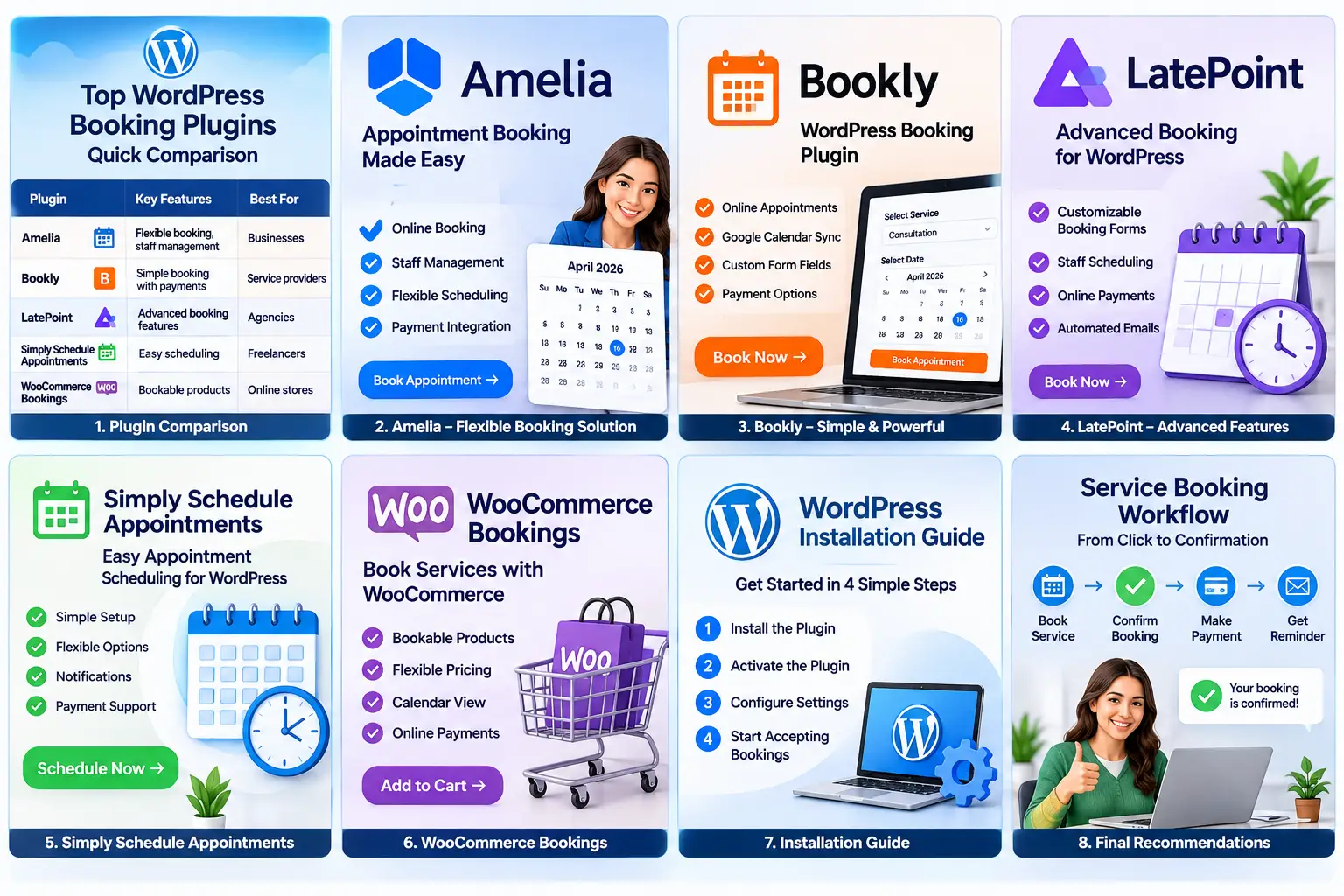
Quick Comparison: Which Plugin Should You Choose?
| Plugin | Good starting point for | Strength to investigate | Check before choosing. |
|---|---|---|---|
| Amelia | Appointment and event-led businesses | Employees, locations, services, events | Which functions are in each license tier? |
| Bookly | Businesses wanting modular extensions | Core scheduling plus add-on ecosystem | Total cost of Pro and required add-ons |
| LatePoint | Service providers and appointment teams | Guided booking, customer dashboard, payment options | Free versus Pro differences |
| Simply Schedule Appointments | Consultations, calls, coaching sessions | Simple calendars and page-builder integrations | Payment, team, and resource features by edition |
| WooCommerce Bookings | WooCommerce stores selling bookable services | Bookings within ecommerce checkout | Store complexity, extension cost, booking rules |
There is no single winner for every service business. If you run a small consultancy, start by testing Simply Schedule Appointments or LatePoint. If you manage staff, locations, and different service types, compare Amelia and LatePoint in a realistic demo. If you already run a WooCommerce store, assess WooCommerce Bookings before adding a separate checkout system. If you prefer to assemble capabilities through extensions, include Bookly in your shortlist.
Essential Features to Look for in a Service Booking Plugin
Service and staff management
Can you create separate services with their own duration, price, description, and availability? Can each employee have individual working hours, breaks, days off, and assigned services? These controls matter when several people deliver different services. Without them, the calendar may show times that cannot actually be fulfilled.
Availability, buffers, and booking rules
Look for minimum notice periods, maximum booking windows, buffer time between appointments, blackout dates, holidays, and limits on bookings per day. A home-service business may need travel time between jobs. A therapist may need a break between sessions. A consultant may want at least 24 hours’ notice. The plugin should support the rules your operation genuinely uses.
Payments, deposits, and refunds
If customers pay online, confirm which gateways are supported, whether the integration is included in your plan, and whether you can collect a deposit or full payment. Check the refund process and how cancellations affect payments. Payment gateways generally process the transaction; the plugin connects the booking workflow to the provider. Review gateway fees and local availability separately.
Notifications and reminders
At minimum, customers and staff should receive clear booking confirmations. Reminders can reduce forgotten appointments, while cancellation and rescheduling messages keep calendars accurate. Check whether notifications are email-only or whether SMS and messaging integrations require a higher tier. Test delivery, sender identity, time zones, and message content before going live.
Calendar synchronization
Google Calendar or other calendar synchronization can help prevent conflicts when staff manage availability in more than one place. Check whether synchronization is one-way or two-way, how quickly changes appear, and how the plugin handles events marked busy. Do not assume that a calendar logo in a feature list means every synchronization behaviour is included.
Mobile usability and accessibility
Many customers will book from a phone. Test the complete process on a small screen: selecting a service, choosing a time, entering details, and paying. Buttons should be easy to tap, labels should be clear, and error messages should explain how to proceed. Consider keyboard navigation, colour contrast, and screen-reader compatibility as well.
Privacy, security, and data control
Booking forms can collect names, contact details, appointment notes, and sometimes sensitive information. Collect only what you need. Review the plugin’s data storage, export and deletion options, user permissions, retention settings, and privacy documentation. Use HTTPS, keep WordPress and plugins updated, restrict administrator access, and maintain reliable backups. If you operate in a regulated sector, obtain appropriate professional advice about your obligations before collecting sensitive data.
How to Choose the Right Plugin for Your Type of Service Business
- Freelancers and consultants: prioritize a clean calendar, different appointment types, time-zone handling, and optional video-call integration. Avoid paying for multi-location features if you work alone.
- Salons and wellness businesses: look for staff assignment, service duration, buffers, deposits, reminders, and customer rescheduling. If customers choose a specific practitioner, make that step easy.
- Repair and home-service companies: assess service areas, job duration, staff availability, travel buffers, and request forms that capture the job details. A standard appointment calendar may not replace dispatch or field-service software.
- Classes and training providers: check group capacity, recurring sessions, event calendars, ticketing, and attendee exports. A one-to-one appointment plugin may be insufficient for classes.
- Agencies: consider discovery calls, paid consultations, team calendars, lead qualification fields, and CRM or automation integrations. Keep the booking form short enough that prospects complete it.
- WooCommerce businesses: evaluate whether bookings need to share product catalogues, checkout, coupons, tax settings, and order workflows with the rest of the store.
How to Install and Configure a WordPress Booking Plugin
- Define the booking journey. Write down the services, durations, prices, staff, locations, working hours, cancellation policy, and payment rules before installing anything.
- Check compatibility. Review the plugin’s current WordPress and PHP requirements, update history, support channels, and compatibility with your theme, page builder, payment gateway, and other essential plugins.
- Install from a trusted source. Use the WordPress dashboard or the developer’s official distribution channel. Avoid unofficial downloads and nulled premium plugins.
- Create services and schedules. Add accurate descriptions, durations, prices, staff assignments, availability, breaks, holidays, and buffers. Make sure the displayed time zone is correct.
- Configure booking forms. Ask only for information needed to fulfil the service. Add helpful labels and explain what happens after submission.
- Connect payments and notifications. Use the plugin’s documented setup process. Send test bookings and verify confirmation, reminder, cancellation, and payment messages.
- Place the booking form on the right page. Add it to relevant service pages and a clear booking page. Explain the service before asking visitors to choose a time.
- Test edge cases. Try a fully booked day, a cancellation, a reschedule, a deposit, a mobile booking, and a booking outside business hours. Check that unavailable slots cannot be selected.
- Back up and monitor. Keep a current backup and monitor booking failures, abandoned forms, missed notifications, and customer feedback after launch.
Common Mistakes to Avoid
Choosing by popularity alone
A plugin can be widely used and still be wrong for your workflow. Compare the features you will use, the support model, the total cost, and the customer experience—not just the number of installs or review score.
Installing several booking plugins
Running multiple appointment systems can create duplicate forms, confusing customer journeys, conflicting calendars, and unnecessary maintenance. Choose one primary booking system unless you have a clearly separated reason for using more than one.
Ignoring add-on and renewal costs
List every paid feature you need and calculate the first-year and renewal cost. Include extensions, payment processing fees, SMS charges, and any third-party services. Confirm whether the licence covers one site or multiple sites.
Making the booking form too long
Only ask for information that helps qualify or deliver the appointment. If you need detailed project information, consider collecting it after the booking or using conditional fields rather than presenting every question upfront.
Failing to test real-world scenarios
A form that looks good in the editor may still allow double bookings, show the wrong time zone, send no confirmation, or fail at checkout. Test as a customer, not only as an administrator.
Does a Booking Plugin Help SEO?
A booking plugin does not automatically improve search rankings. Its main job is to make the service easier to book. It can support business goals by connecting useful service pages to a clear conversion action, but search visibility still depends on the quality and relevance of the page, site performance, technical health, and the competition for the query.
Create a dedicated page for each important service where there is enough unique information to help customers decide. Explain who the service is for, what is included, typical duration, location or delivery method, pricing where possible, and how to book. Add a clear booking call to action without hiding the information visitors need. Use descriptive page titles, internal links, accessible form labels, and optimized images.
For broader WordPress improvements, see Makhan.org’s guides to free WordPress plugins, essential WordPress plugins, and common WordPress mistakes to avoid. These resources cover the wider site setup rather than replacing a booking-specific comparison.
Frequently Asked Questions
What is the best free WordPress booking plugin?
There is no universal best choice. LatePoint, Bookly, Amelia, and Simply Schedule Appointments all offer free starting points, but their included features differ. Compare the number of services and calendars you need, payment support, staff management, and whether essential functions are restricted to paid editions.
Can I accept payments through a WordPress booking plugin?
Yes, several booking plugins connect to payment gateways. Supported providers and payment features vary by plugin and plan. Check whether you can take full payment or deposits, which currencies and countries are supported, and how refunds and cancellations are handled.
Can customers choose a specific employee?
Some plugins support employee or staff selection and individual staff schedules. Confirm that this feature is available in the edition you plan to use and that each employee can be assigned only to the services they actually provide.
Can I use a booking plugin with Elementor?
Many booking plugins offer Elementor widgets, blocks, or shortcodes, but integration details vary. Check the current documentation for your chosen plugin and test the form in the page template you intend to publish.
Do I need WooCommerce to accept appointment bookings?
No. Dedicated booking plugins can accept appointments and, where supported, process payments without requiring a full WooCommerce store. WooCommerce Bookings is more relevant when you want bookings integrated with a WooCommerce product and checkout workflow.
Will a booking plugin prevent every double booking?
A well-configured plugin should use availability rules to prevent overlapping appointments within its booking system. However, conflicts can still occur if external calendars are not synchronized, staff schedules are inaccurate, or multiple systems are used. Test synchronization and conflict handling before relying on it.
Final Recommendation
The right WordPress plugin for services is the one that matches your actual booking process without adding unnecessary complexity. For a straightforward consultation calendar, start with Simply Schedule Appointments or LatePoint. For a business with several employees, locations, services, or events, compare Amelia and LatePoint in a test environment. Consider Bookly if its modular add-ons fit your planned feature set, and WooCommerce Bookings if bookings need to be part of an existing WooCommerce store.
Before committing, build a realistic test service, complete a booking from a mobile device, check notifications and payments, and try a cancellation. A short test now is better than rebuilding your booking process after customers are already using it.
Editorial note: Plugin features and licensing can change. Confirm current capabilities, prices, renewal terms, compatibility, and support directly with each developer before purchase.
Sources and Further Reading
- Amelia – WordPress.org plugin listing and official feature documentation.
- Bookly – WordPress.org plugin listing and Bookly feature documentation.
- LatePoint – WordPress.org plugin listing.
- Simply Schedule Appointments – WordPress.org plugin listing and official feature overview.
- WooCommerce Bookings – official product page.
